Smartphone manufacturers pack tons of useful tools and shortcuts into modern devices. Often, these handy features go unnoticed—but mastering them can turn a regular phone into an efficient daily companion. Whether you use an iPhone, Samsung Galaxy, Xiaomi, Infinix, or Realme device, here are hidden features that will elevate your experience in 2025.
1. iPhone – Back Tap Shortcuts
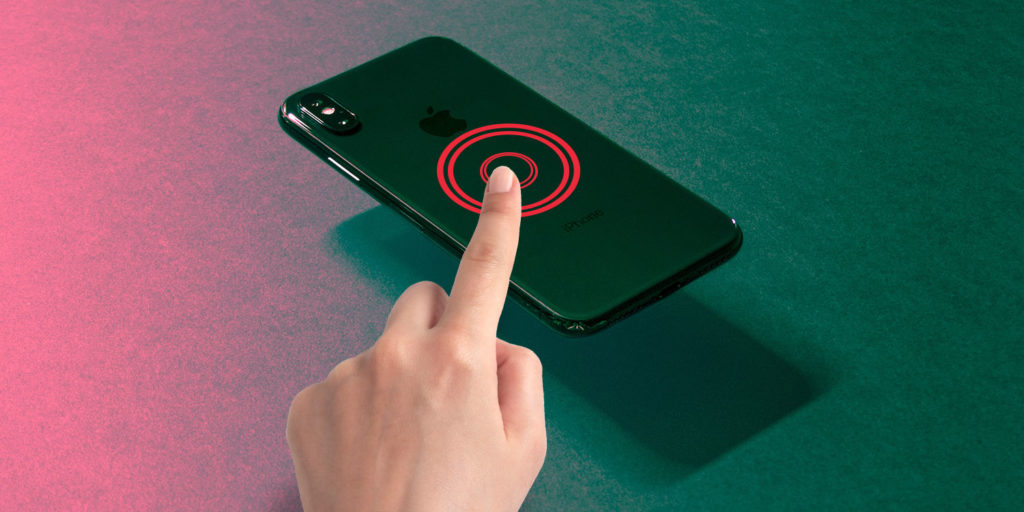
Many users don’t realize that iOS allows you to trigger actions by double-tapping or triple-tapping the back of your iPhone. Navigate to Settings → Accessibility → Touch → Back Tap to assign tasks like opening the flashlight, taking screenshots, or launching apps. This hidden gesture makes one-handed use faster and more intuitive.
2. Samsung Galaxy – One-Handed Mode with Gesture
On large-screen Samsung Galaxy devices, switching to one-handed mode can help with reach. Just swipe down diagonally from either corner of the bottom screen (or use a home button gesture under Settings → Advanced Features → One-handed mode) to shrink the screen temporarily. It’s ideal for tall displays and makes single-thumb operation easier.
3. Xiaomi / Redmi (MIUI) – Floating Calculator
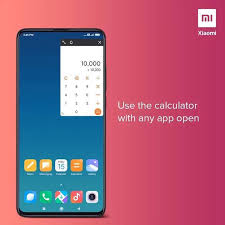
Xiaomi phones running MIUI have built-in tools floating over apps. Launch the Calculator in float mode from the Control Center or quick toggles to perform calculations without exiting your current task—handy for financial apps, shopping, and conversions.
4. Realme – In‑Screen Freeze to Capture Lungs
Realme devices allow you to long-press the fingerprint or power button in-screen unlock and then freeze the current screen by swiping up three fingers. This captures running content, ideal for reading articles or saving images without taking full screenshots.
5. Infinix (XOS) – Smart Panel for Quick Actions
On Infinix phones, pull the Smart Panel (swipe from the edge) to access quick shortcuts: app pairs for split-screen use, instant flashlight toggle, calculator, and screen recording. Great for multitaskers balancing studies, work, or content creation.
6. Android – Pin Activity for Privacy
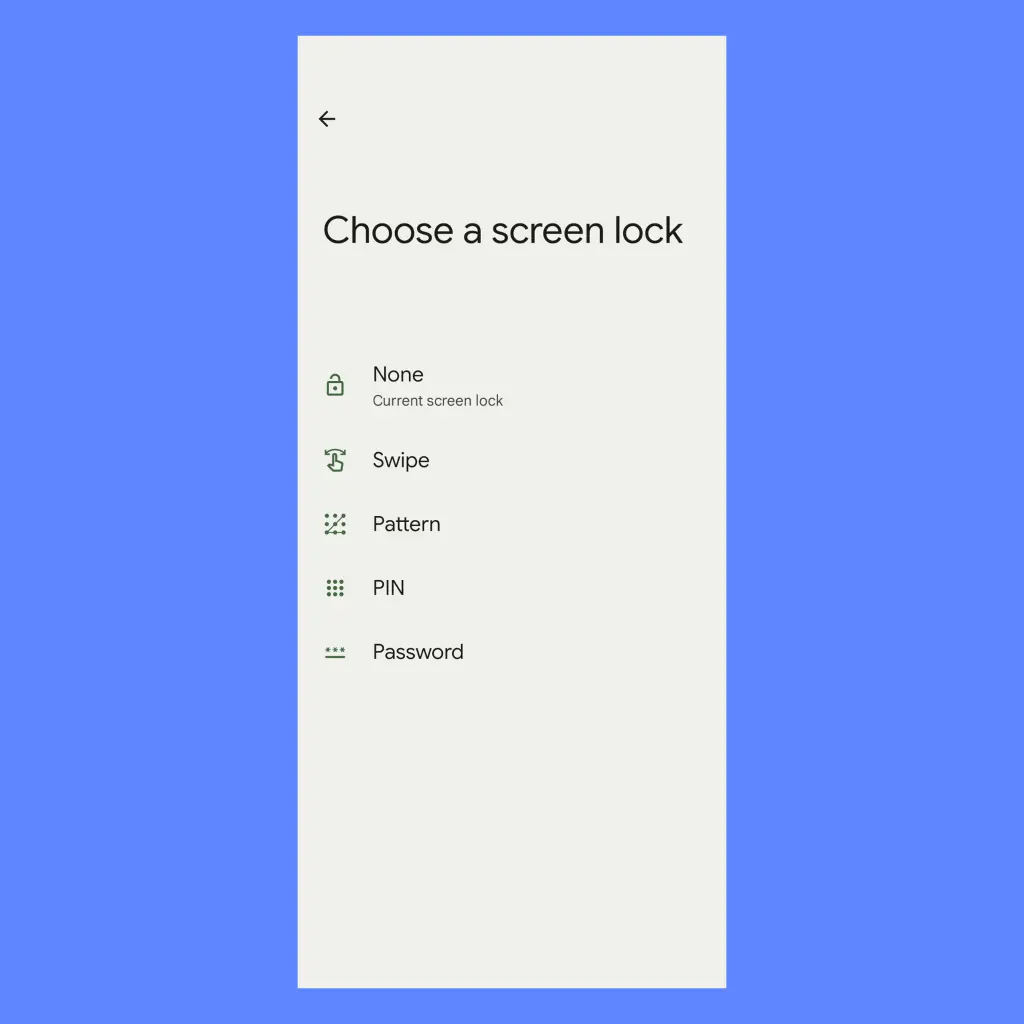
Android offers “Screen Pinning,” which locks the current app in view, preventing users from leaving until the feature is disabled. After enabling it under Settings → Security → Screen pinning, activate it via the Recent Apps menu to ensure someone using your phone can only access that one app.
7. iPhone – Back Door to Focus Modes
The Focus modes in Settings → Focus are powerful customization tools. Long hold on the Focus toggle in Control Center and tap the three dots to reveal additional options: schedule start times, choose Home Screen pages, or auto-reply to contacts. Set up a Work-only Home Screen page or Silent-only Lock Screen for better productivity.
8. Samsung – Object Eraser in Gallery
Open any photo in your Samsung Gallery, tap Edit → More Options → Object Eraser. Highlight the object or person you want to remove—Samsung’s AI fills in the background intelligently. Use it to fix unwanted clutter in your snapshots without needing another app.
9. Xiaomi / Realme – Hidden Game Turbo Features
MIUI Game Turbo and Realme Game Space include a screen recorder, caller/DND toggle, touch settings, and FPS indicator. Swipe down from the top edge during gameplay to access Game Assistant and unlock hidden optimization tools without disruptions.
10. Google Pixel – Live Caption Anywhere
Google Pixel phones running Android 14+ offer Live Caption for calls and media. Enable it via Settings → Accessibility → Live Caption, and you’ll see real-time transcription. Useful in meetings, noisy apps, or on mute.
11. Android – System-Wide Quick Tap Back Shortcut
Some Android manufacturers automatically include double or triple tap back shortcuts (e.g., Samsung, OnePlus). Look under Settings → Gestures for this feature. Common uses include media control, screenshot, and shortcut activations.
12. All Phones – Hidden QR Scanner in Camera
Many camera apps hide a QR scanner. Long-press the yellow shutter button (especially in Samsung, Realme, OPPO, Xiaomi) to launch it. Alternatively, scan QR codes directly in the camera view by tapping the small QR icon near the capture button—no need for third-party apps.
13. Universal – Toggle VR or Car Mode via Google Assistant
Saying “Hey Google, turn on car mode” puts your phone into an easy-to-use driving UI with large icons. You can also command it to turn on Driving Mode, launch music, or display routes without unlocking the screen.
14. Samsung – Customize Power Menu
In Settings → Advanced Features → Side Key, choose to customize long-press side button actions. You can launch camera, Bixby, or other apps directly instead of the default power menu. Assign triple-press or long-press for high-speed tasks.
15. All Android Phones – Scheduling UI Themes
In Settings → Display, schedule your phone’s theme automatically. Use Light theme during the day and Dark theme at night—for example, on Mi and Realme UI, schedule Dark Mode to start at 7 PM and end at 6 AM daily.
Why These Features Matter
Hidden features make everyday interactions more efficient. Whether it’s taking quick screenshots without fumbling, launching apps with gestures, cleaning up photos with AI, or simplifying one-handed use, each trick enhances productivity and customizes your device experience.
These tools aren’t widely advertised but deliver major improvements once discovered. Share them with friends or customers—every tip can make someone’s phone feel brand new.
#SmartphoneHacks #HiddenFeatures #MobileTips2025 #ProductivityPhone #TechTips #PhoneShortcuts #MIUITips #OneUITips #RealmeHacks