
In today’s fast-paced world, a slow Android phone can be incredibly frustrating. Whether it’s lagging during gaming, taking too long to load apps, or freezing while multitasking, poor performance can affect your productivity. The good news is that you don’t always need a new phone to get better speed — you can make a few adjustments to boost your current device. In this article, we’ll show you how to speed up any Android phone using easy, effective methods.
1. Restart Your Phone Regularly
Restarting your phone clears temporary files and closes background apps. This small step refreshes your phone’s memory and helps restore performance. If your device feels sluggish, a quick reboot may give it the boost it needs.
2. Clear Cache Data
Cached data from apps can pile up over time and slow down your device. Go to Settings > Storage > Cached Data and clear it. For individual apps, use Settings > Apps > [App Name] > Storage > Clear Cache. Be careful not to clear app data unless necessary, as this may remove your preferences or login info.
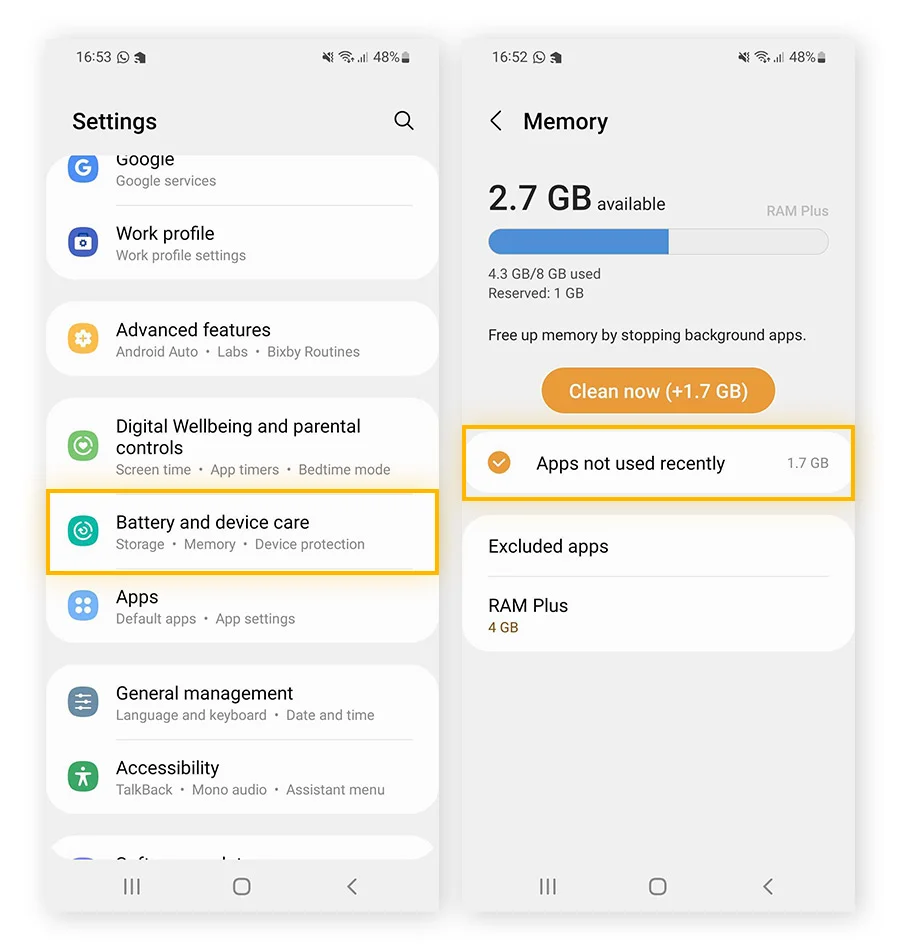
3. Uninstall Unused Apps
Unused apps not only take up space but may run background processes. Delete any apps you no longer use by navigating to Settings > Apps, selecting the app, and tapping Uninstall. Focus on removing large games, duplicate apps, or battery-draining social media platforms.
4. Disable or Reduce Animations
Fancy screen transitions look good, but they consume RAM and CPU. To reduce or disable them:
- Go to Settings > About Phone
- Tap Build Number seven times to enable Developer Options
- Navigate to Settings > Developer Options
- Reduce Window Animation Scale, Transition Animation Scale, and Animator Duration Scale to 0.5x or off
This can make your phone feel significantly faster.
5. Use a Lighter Launcher
Default launchers can be bloated. Install a lightweight launcher like Nova Launcher or Microsoft Launcher, which offers better performance, smoother transitions, and less resource usage.
6. Update Your Software
Android updates often include performance improvements and bug fixes. Go to Settings > System > Software Update and make sure your device is running the latest version available.
7. Limit Background Processes
Too many background apps slow down performance. In Developer Options, you can:
- Scroll to Background process limit
- Choose At most 4 processes or fewer
This will free up memory and CPU for essential tasks.
8. Use Lite Versions of Apps
Facebook, Messenger, and other apps offer “Lite” versions that consume less data and RAM. These versions are ideal for low-end phones or users looking to speed up their device without sacrificing functionality.
9. Disable Bloatware
Many phones come with pre-installed apps that you rarely use. While some can’t be uninstalled, they can be disabled:
- Go to Settings > Apps > [App Name]
- Tap Disable
Disabling bloatware prevents the app from running in the background or consuming storage.
10. Monitor Battery and RAM Usage
Use Settings > Battery or Device Care to identify apps that drain battery and consume RAM. Uninstall or restrict apps that frequently appear at the top of usage charts.
11. Avoid Live Wallpapers and Heavy Widgets
Live wallpapers and multiple widgets look cool but drain your CPU and battery. Stick with a static wallpaper and keep only essential widgets on your home screen.
12. Perform a Factory Reset (Optional)
If nothing else works, consider a factory reset. It removes all apps, files, and settings, returning the phone to its original state. Backup your data first, then go to Settings > System > Reset > Factory Data Reset. This method is especially useful for older phones plagued with years of bloat and junk files.
13. Install a Custom ROM (Advanced Users Only)
If you’re tech-savvy and your phone is out of warranty, you might benefit from installing a custom ROM like LineageOS or Pixel Experience. These stripped-down Android versions offer a clean, bloat-free experience and can breathe new life into old devices. However, this requires unlocking the bootloader and rooting the phone, which carries some risk.
Final Words
Speeding up your Android phone doesn’t require technical skills or expensive upgrades. With these easy tips — from clearing cache and disabling animations to using lighter apps — you can significantly boost your device’s performance. Follow the suggestions that fit your comfort level and phone model, and you’ll enjoy a smoother Android experience.
#AndroidTips #SpeedUpAndroid #PhoneOptimization #TechGuide #MobilePerformance #AndroidTricks #BoostYourPhone #AndroidHacks #FasterAndroid #DeviceCare